01
Brightness and pixel wear
OLED pixels emit their own light. In general, sustained higher luminance accelerates aging of the emissive materials. Reducing luminance when it is not needed can reduce that stress.
MoniBridge / OLED
MoniBridge started with a concern about burn-in on an OLED monitor. Even when the Mac was idle, the same desktop stayed brightly lit. I wanted to reduce that time.
01
OLED pixels emit their own light. In general, sustained higher luminance accelerates aging of the emissive materials. Reducing luminance when it is not needed can reduce that stress.
02
Menu bars, docks, and toolbars stay in fixed positions. Uneven pixel aging can leave a persistent pattern known as burn-in. Dimming does not move those elements, but lowering their actual light output can help reduce stress.
How MoniBridge helps
MoniBridge dims in stages based on time without mouse or keyboard input, then restores your usual brightness when you resume. It responds to input activity, not a presence sensor.
Per-display minimum and maximum settings let you choose suitable ranges for a mixed LCD and OLED setup. You can also pause dimming during media playback or pause it manually.
Read the setup guide →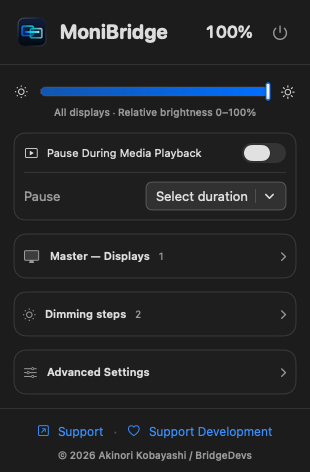
03
OLED pixels emit their own light, so gamma dimming can help even when DDC hardware brightness control is unavailable. When gamma mode reduces actual light output, it reduces stress on the emitters and can help lower burn-in risk. The effect depends on the monitor and its settings. A displayed value of 50% does not mean half the light output or half the aging.
We have not measured lifetime extension or burn-in reduction from MoniBridge. It does not guarantee prevention of burn-in.
04
Follow the manufacturer’s guidance for pixel shifting and automatic panel maintenance. Let the display sleep during longer periods of inactivity. MoniBridge adds automatic everyday dimming alongside these measures.
An example configuration
Start with a delay that does not interrupt your work. This example dims after three minutes, then further after ten. Input activity restores your usual brightness.
These are illustrative settings, not validated burn-in prevention targets. Percentages are app values relative to your usual brightness. Adjust them for readability and your work.
Your usual brightness
Dim a little
Dim further
Fit dimming into your day
Let dimming follow your idle delays during short pauses. If it interrupts you while checking printed notes or thinking, increase the delay.
Use playback pause or pause manually. Playback detection varies by app and environment, so check it with your usual player.
Use macOS display sleep. Follow your monitor manual for automatic panel maintenance settings as well.
Common questions
Yes. Reading without mouse or keyboard input counts as idle time. Use a longer initial delay or pause dimming when reading longer documents.
Choose which displays to control and set a minimum and maximum for each. You can select only the OLED. To make multiple displays look more consistent, adjust their ranges while viewing the actual screens.
Let the display sleep when it will be unused for a longer period. Dimming still leaves an image on screen. Use MoniBridge for short idle periods and macOS display sleep for longer ones.
MoniBridge does not repair burn-in. If you notice persistent marks, consult your monitor manual or the manufacturer’s support information.
Test environment
Tested Macs: MacBook Air (M1) and Mac Studio (M4 Max).
MoniBridge is developed and tested using an ASUS ROG Swift OLED PG42UQ. Concern about burn-in while using an OLED monitor was the starting point for the app.
Brightness control on other monitors can vary with the connection and monitor settings. Check manual brightness adjustment, idle dimming, and restoration on input in your own setup.
View the ASUS product page ↗References
These sources describe manufacturer guidance and OLED device research. They do not test MoniBridge’s effectiveness.