01 / Auto dim
Idle longer. Dim in steps.
Gradually dim the external monitors connected to your Mac as idle time increases. Choose the delay and brightness level for each step.
External monitor brightness for Mac
External monitor control, right in your menu bar.
A little rest for your external monitors.
Adjust multiple external monitors together with one slider. Set a minimum and maximum brightness for each monitor to bring their appearance closer together, even across different brands and models.
Apple silicon Mac (M1 or later) · macOS 14 Sonoma or later
Version 1.0.0 · Build 202609091000 · Free (optional development support)
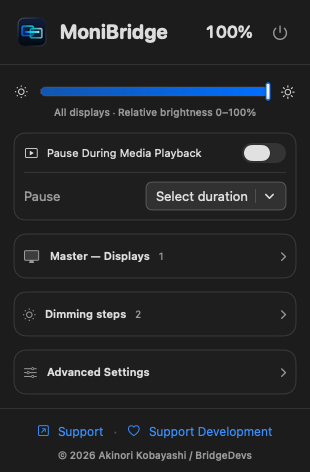
01 / Auto dim
Gradually dim the external monitors connected to your Mac as idle time increases. Choose the delay and brightness level for each step.
02 / Instant return
Mouse or keyboard activity restores your everyday brightness immediately. Adjust that brightness directly from the menu bar.
03 / Your displays
Adjust maximum and minimum brightness for each external monitor. By tuning each screen’s range, you can bring dimming levels closer together across monitors with different manufacturers and characteristics.
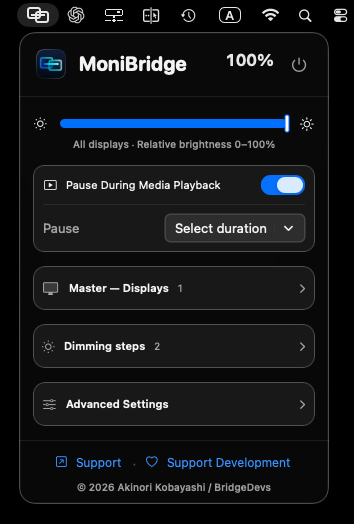
Always in your menu bar
Launch MoniBridge and its icon appears in your Mac’s menu bar. Click it whenever you want to change brightness, pause dimming, or adjust your settings.
MoniBridge keeps running and handles automatic dimming after you close the menu. Enable Launch at Login to start it automatically when you log in to your Mac.
Multiple monitors
50% can look different on different monitors. MoniBridge lets you set a minimum (Min) and maximum (Max) brightness to suit each display.
Once the ranges are set, use one menu-bar slider to adjust multiple monitors at the same time. Each display changes within its own range, and automatic dimming uses those same settings.
Learn how to tune each monitor →Compare your screens and adjust Min and Max for each monitor.
Change everyday brightness together while keeping each display’s range.
Idle dimming follows the settings you chose for each monitor.
At your pace
Dimming steps are percentages of your everyday brightness. For example: 70% after three minutes, then 40% after ten. Resume activity to return to your everyday brightness.
Example settings. Delays and levels are adjustable.
OLED
Concern about burn-in inspired MoniBridge. Learn how brightness affects pixel wear and where automatic dimming can help.
Requirements
Requires an Apple silicon Mac (M1 or later) running macOS 14 Sonoma or later. Intel Macs are not supported. There are no special minimum memory or storage requirements.
Hardware brightness control requires a DDC/CI-compatible display and a USB-C, DisplayPort, or HDMI connection, or a compatible dock, that passes DDC signals. Some docks and adapters do not support DDC control.
When DDC control is unavailable, MoniBridge uses gamma mode to dim the screen. Gamma mode adjusts the image signal without changing the monitor’s hardware brightness setting.
Getting started
Open MoniBridge from the menu bar and select the external monitors you want to adjust.
Set the minimum and maximum for each screen, then use the top slider to choose your everyday brightness.
Choose idle delays and brightness percentages. You can also adjust the fade when dimming.
Support
Learn how brightness works, configure each display, pause during playback, and troubleshoot common issues.
Visit MoniBridge support →Pay what you want
MoniBridge is free to download, with optional development support. Every feature is available for free. If you find it useful, you can choose an amount to support its development.
Support development →