Volume keys for external audio
Adjust audio on the Mac side for HDMI, DisplayPort, USB-C monitors, and USB DACs, instead of reaching for the monitor’s controls each time.
BridgeDevs / Mac Software
Audio utility for macOS
For HDMI monitors and USB DACs that won’t respond to your volume keys. VoluBridge receives audio from your Mac, adjusts its volume, and sends it to your chosen device.
$49 · Through September 30, 2026
Why VoluBridge
With HDMI, DisplayPort, and some USB DACs, macOS can select the output without being able to change its system volume. Nothing is broken—the Mac and the device simply handle volume in different places.
How it works
VoluBridge adds a virtual output that macOS can control, then passes audio to the external device you choose. It does not depend on DDC monitor control.
Select a physical device directly and VoluBridge automatically switches to direct output. The core bridge runs at the driver level, so its control panel does not need to stay open.
Features
Adjust audio on the Mac side for HDMI, DisplayPort, USB-C monitors, and USB DACs, instead of reaching for the monitor’s controls each time.
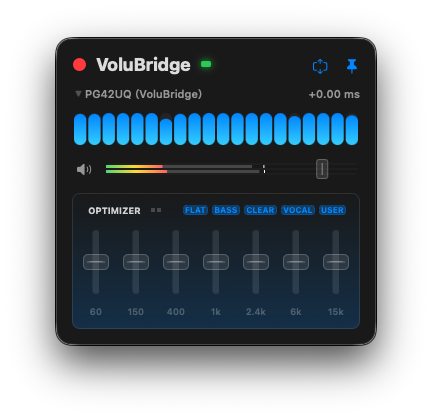
Choose an output, adjust volume, and check the audio state from one view. Select the output that matches the device you’re using.
When you select a physical device directly in macOS, VoluBridge stops bridging and treats it as a direct output. Only the audio path you need stays active.
VoluBridge responds to wake, reconnection, output switching, and sample-rate changes so everyday device changes are less likely to break the audio path.
Use finer volume increments and choose an output channel pair when working with a multichannel device.
Peak/RMS meters and a spectrum display show what is playing. Optimizer lets you adjust the sound for the output and the task.
Meters & Optimizer
Peak/RMS meters and a spectrum view show the sound passing through each channel. Optimizer is there when an output or listening task needs adjustment.
Inside VoluBridge
In virtual audio, differences between the Mac’s timing and the output device can add latency. VoluBridge observes read/write positions and uses PLL-based synchronization to follow the drift.
Latency varies with the output device and connection setup.
For your setup
Use Mac volume keys with monitor audio over HDMI, DisplayPort, or USB-C.
Keep familiar Mac volume control while using a higher-quality external output.
Useful when the monitor lacks DDC support, the connection blocks it, or a USB DAC also needs control.
If DDC works reliably in your setup, a DDC utility may already be enough. VoluBridge is for setups that need volume control in the CoreAudio path.
Getting started
Install the VoluBridge app and driver.
Select VoluBridge as the output in macOS Sound settings.
Choose your actual monitor or DAC in VoluBridge, then use the volume keys.
14-day trial
Every monitor, DAC, dock, and app combination is different. Before purchasing, check volume control, output switching, wake behavior, and your everyday audio flow.
Download it free and try it for 14 days. The license is a one-time purchase with no automatic charge.
The driver adds a virtual output whose volume macOS can control, then passes audio to the physical device. VoluBridge uses an app together with a CoreAudio driver.
DDC controls the monitor hardware. VoluBridge adjusts volume in the Mac’s audio path. The approaches serve different setups and needs.
Physical device and OS latency still exist. VoluBridge’s design aims to reduce additional waiting in the virtual audio path.
VoluBridge supports Apple Silicon Macs running macOS 12 or later. Administrator approval is required to install, update, or remove the audio driver.
Audio routing, volume control, meters, spectrum analysis, and diagnostics run locally on your Mac. License activation and update checks use a network connection.
A 14-day trial lets you test your own monitor, DAC, dock, and everyday apps before purchasing.
Download VoluBridge free from this product page. You will not be charged after the 14-day trial unless you choose to purchase a license.